
Adobe Lightroom Classic – Understanding the Interface and Its Main Features
Adobe Lightroom Classic is much more than a photo editing application. It is a complete photography workflow tool that allows you to organize, edit, manage, and share your photographs in one place.
When you first open Lightroom Classic, its interface may seem a little complicated. There are several panels, menus, and tools, and it is not always obvious where to begin. However, the program follows a logical structure, and once you understand its main sections, navigating between them becomes much easier.
In this guide, we will explore the seven main modules of Adobe Lightroom Classic, explain their purposes, and look at how they fit into a typical photography workflow.
This article provides a general overview of the interface. In future tutorials, we will explore individual modules in greater detail, particularly Library and Develop, which are the two most important areas for everyday photo management and editing.
Understanding the Lightroom Classic Workspace
The Lightroom Classic interface is divided into several main areas.
At the top of the application, you will find the Module Picker, which allows you to switch between the different workspaces:

Adobe Lightroom Classic menu
Each module is designed for a specific task. Although they share a similar appearance, their tools and available settings change depending on the selected workspace.
Most modules contain three main areas:
Left Panel: Usually contains navigation tools, presets, templates, collections, or other organizational features.
Central Workspace: The main area where photographs, editing previews, maps, or layouts are displayed.
Right Panel: Contains the tools and settings related to the currently selected module.
At the bottom of the interface, you will usually find the Filmstrip, which displays thumbnails of your photographs and makes it easy to switch between images.
The panels can be expanded, collapsed, or hidden to create more working space.
Let’s explore what each module offers.
1. Library Module – Organizing Your Photographs
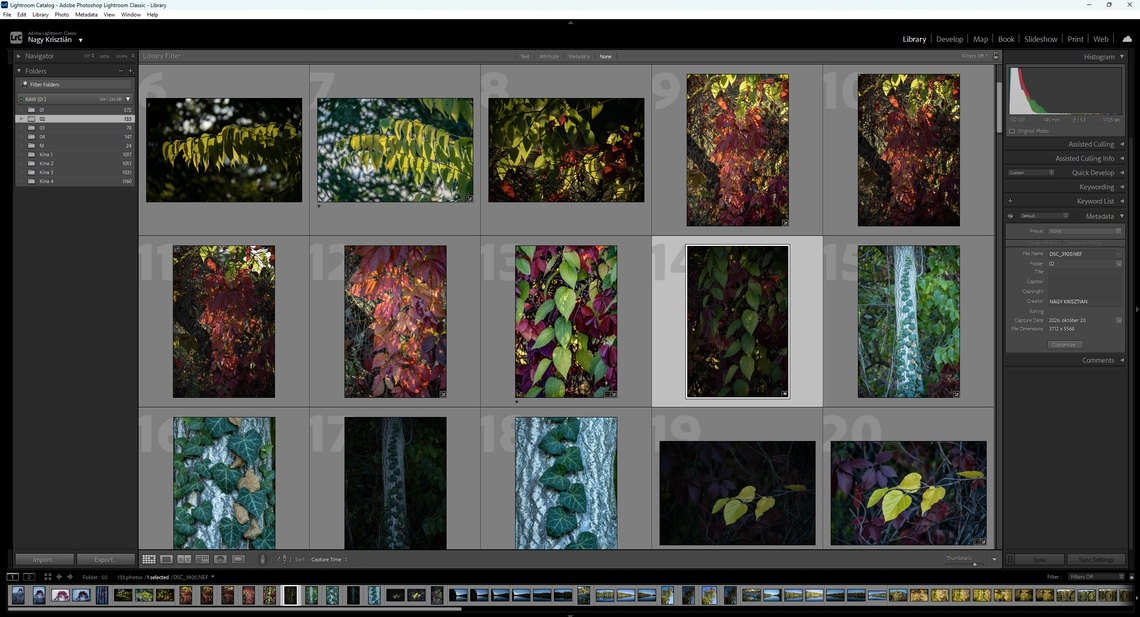
Library module in Adobe Lightroom Classic
The Library module is the starting point for most Lightroom Classic workflows.
This is where you import photographs, browse your image collection, organize files, and prepare photographs for editing.
Unlike a traditional file browser, Lightroom uses a catalog-based system. This means that the application keeps track of your photographs, their locations, metadata, and editing information without requiring you to move the original files into the catalog itself.
Main features of the Library module
- Importing photographs: Add images from memory cards, cameras, or storage drives to your Lightroom catalog.
- Folders and Collections: Organize photographs using their existing folder structure or create virtual collections without duplicating the original files.
- Grid and Loupe Views: Browse multiple photographs as thumbnails or examine individual images in greater detail.
- Ratings and Labels: Use stars, flags, and color labels to identify your best photographs.
- Keywords and Metadata: Add descriptive keywords, copyright information, and other useful details.
- Filtering and Searching: Find photographs based on dates, camera settings, ratings, keywords, and other criteria.
- Quick Develop: Make basic adjustments without switching to the Develop module.
- Exporting Photographs: Create JPEG, TIFF, and other output files for sharing, publishing, or printing.
For photographers who regularly work with hundreds or thousands of images, the Library module is particularly valuable. A well-organized catalog can save considerable time when searching for older photographs or selecting images from a large photo session.
When should you use it?
Use the Library module when importing new photographs, reviewing a photo session, selecting your favorite images, or managing your collection.
We will cover importing, folder management, collections, ratings, and metadata in a separate, more detailed tutorial.
2. Develop Module – Editing and Enhancing Photographs
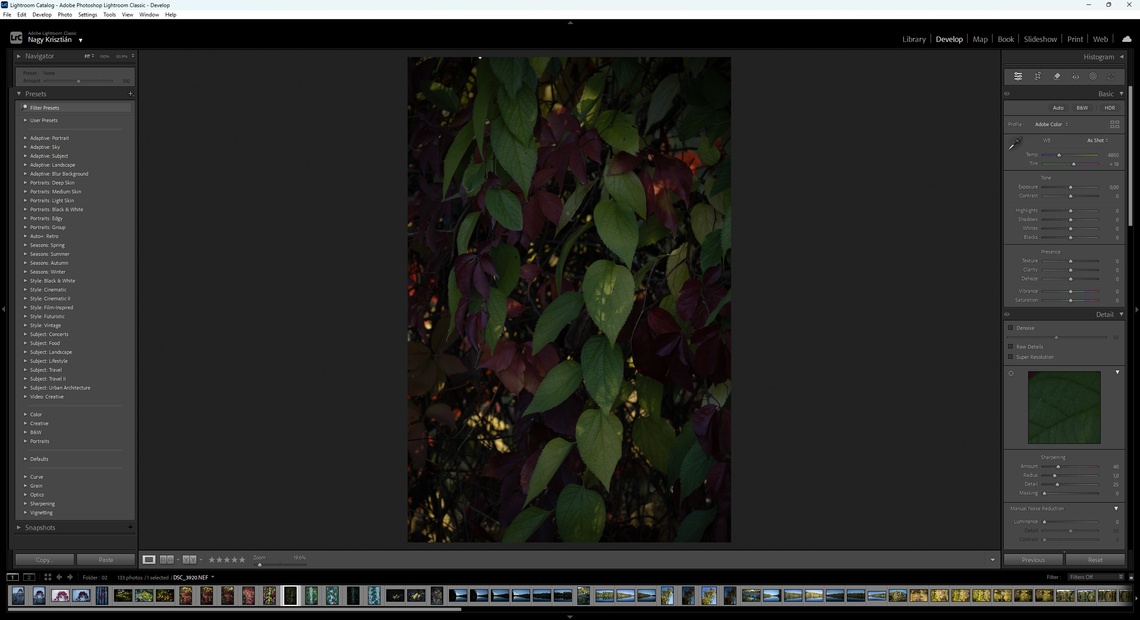
Develope module in Adobe Lightroom Classic
The Develop module is the heart of Lightroom Classic’s photo editing capabilities.
This is where you can transform an original photograph into a finished image by adjusting exposure, colors, contrast, sharpness, and many other visual characteristics.
One of Lightroom’s greatest advantages is its non-destructive editing system. The original photograph remains unchanged, while your adjustments are stored as editing instructions in the catalog.
This allows you to experiment freely, return to previous settings, or reset an image without permanently modifying the original file.
Main features of the Develop module
- Basic Adjustments: Control exposure, contrast, highlights, shadows, whites, and blacks.
- White Balance: Correct unwanted color casts and adjust the overall temperature and tint.
- Tone Curve: Fine-tune brightness and contrast across different tonal ranges.
- Color Mixer: Adjust individual colors, including their hue, saturation, and luminance.
- Color Grading: Add creative color tones to shadows, midtones, and highlights.
- Detail: Apply sharpening and noise reduction to improve image quality.
- Lens Corrections: Correct optical distortions and other lens-related imperfections.
- Crop and Geometry Tools: Straighten, crop, and correct perspective.
- Masking: Make selective adjustments to specific areas, subjects, or backgrounds.
- Presets: Apply predefined editing settings to achieve a consistent look more quickly.
- AI-Powered Features: Use supported intelligent tools for tasks such as noise reduction, masking, and removing unwanted distractions.
The Develop module offers both automatic adjustments and extensive manual controls. Beginners can start with simple exposure and color corrections, while more experienced photographers can use advanced tools to refine every detail.
When should you use it?
Use the Develop module whenever you want to improve or creatively edit a photograph, whether you are making a simple brightness correction or performing detailed RAW image processing.
Since this is one of Lightroom Classic’s most important modules, we will dedicate several future tutorials to its tools and techniques.
3. Map Module – Exploring Where Your Photos Were Taken
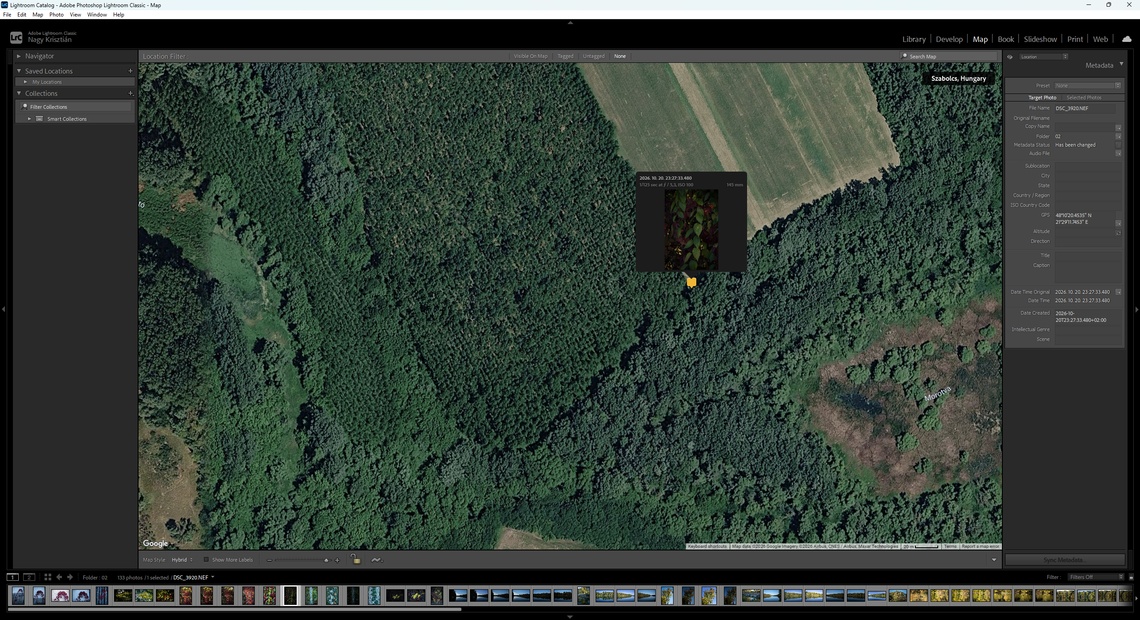
Map module in Adobe Lightroom Classic
The Map module allows you to view and organize photographs according to their geographical locations.
If your camera or smartphone records GPS coordinates, Lightroom can use that information to display your photographs on a map.
Photographs without GPS data can also be assigned locations manually.
Main features of the Map module
- Display geotagged photographs on a map.
- Search for geographical locations.
- Assign GPS coordinates to photographs manually.
- Create and manage saved locations.
- Browse photographs taken in specific places.
- Add location information to your photographic archive.
This feature is especially useful for travel, landscape, wildlife, and documentary photography.
For example, after returning from a trip, you can use the Map module to see where individual photographs were taken and organize your images by location.
When should you use it?
Use the Map module when working with location-based photographs or when you want to add geographical information to your images.
4. Book Module – Creating Photo Books
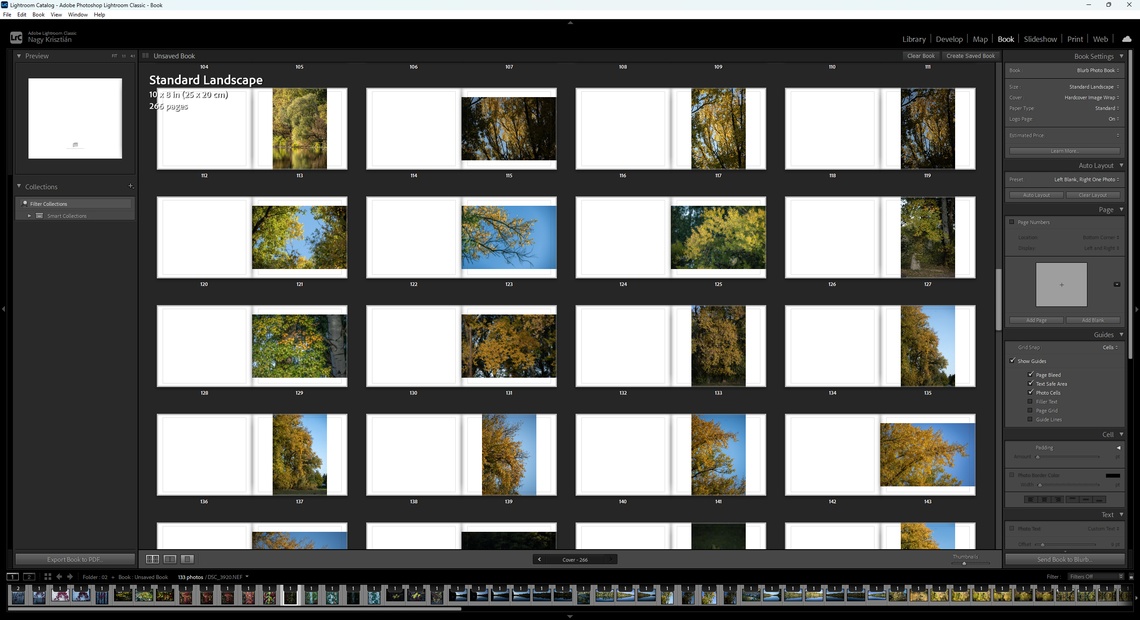
Book module in Adobe Lightroom Classic
The Book module allows you to turn your photographs into a professionally arranged photo book.
Instead of exporting images individually and arranging them in another application, you can create an entire book layout directly within Lightroom Classic.
Main features of the Book module
- Choose book sizes and page formats.
- Arrange photographs across single or double-page layouts.
- Use automatic layout options.
- Add text, captions, and page numbers.
- Customize margins, backgrounds, and image placement.
- Preview the complete photo book.
- Export the finished book as a PDF or JPEG pages, or use supported photo book printing services.
The Book module is useful for creating wedding albums, travel books, family photo collections, and photography portfolios.
When should you use it?
Use the Book module when you want to present a collection of photographs in a structured, book-like format.
5. Slideshow Module – Presenting Your Photographs
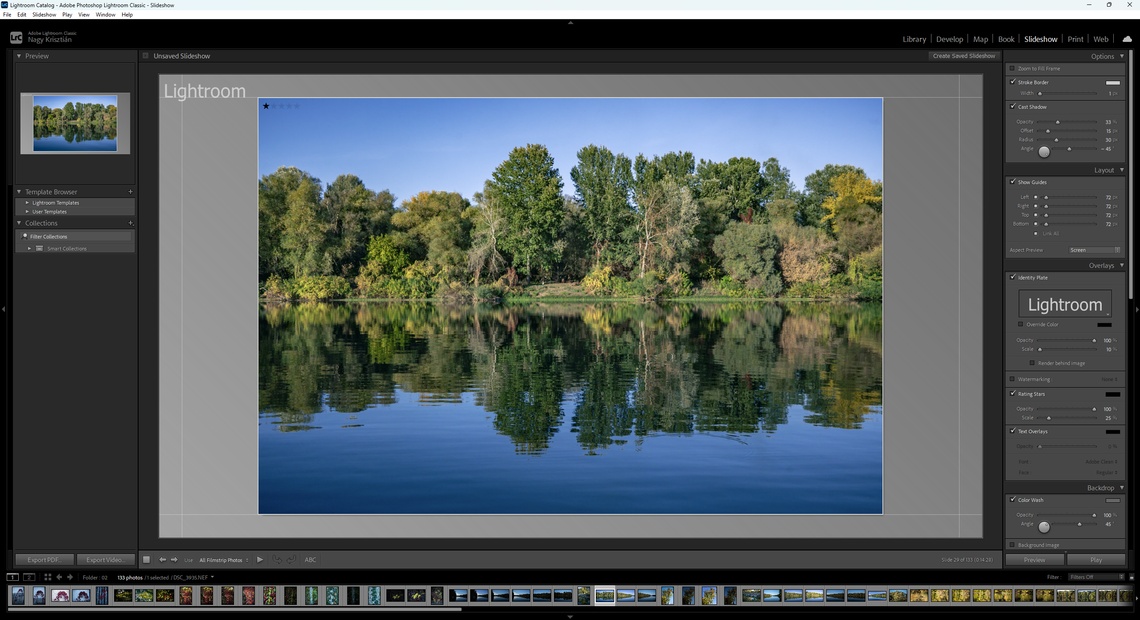
Slideshow module in Adobe Lightroom Classic
The Slideshow module is designed for creating visual presentations from your photographs.
It allows you to display images in sequence, making it suitable for photography presentations, exhibitions, family events, and other occasions where photographs need to be shown on a screen.
Main features of the Slideshow module
- Create slideshows from selected photographs.
- Choose from predefined slideshow templates.
- Customize backgrounds, borders, and image positioning.
- Add text overlays and identity plates.
- Display photo ratings or other information.
- Add music to a slideshow.
- Set slide durations and transitions.
- Export slideshows as PDF or video files.
You can create a simple presentation with only a few photographs or build a longer slideshow with customized timing and visual elements.
When should you use it?
Use the Slideshow module when you want to present your photographs as a sequence rather than as individual images.
6. Print Module – Preparing Photographs for Printing
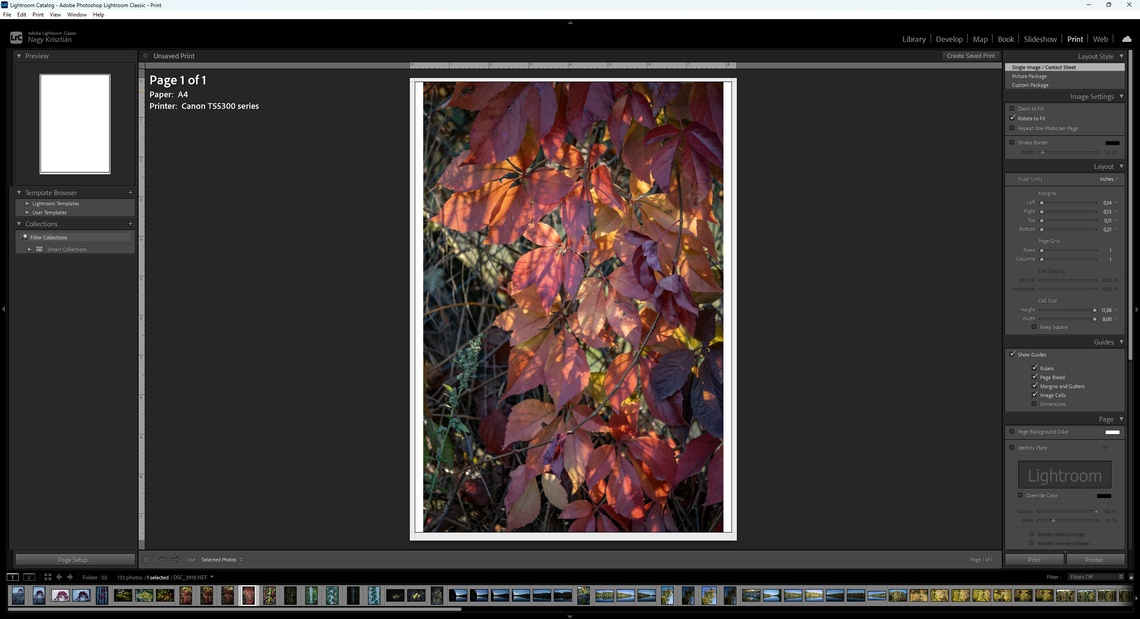
Print module in Adobe Lightroom Classic
The Print module provides tools for arranging and printing photographs directly from Lightroom Classic.
It offers more control than simply opening a photograph and selecting the print command.
You can customize page layouts, image dimensions, margins, and several print-related settings.
Main features of the Print module
- Print single photographs or multiple images on one page.
- Create contact sheets.
- Choose different paper sizes and page orientations.
- Adjust image placement and margins.
- Add borders, identity plates, and watermarks.
- Control print resolution and sharpening.
- Configure color management settings.
- Print directly or create JPEG files for external printing services.
The Print module is particularly useful for photographers who prepare physical prints, portfolios, exhibition photographs, or contact sheets.
When should you use it?
Use the Print module whenever you need precise control over how your photographs will appear on paper.
7. Web Module – Creating Online Photo Galleries
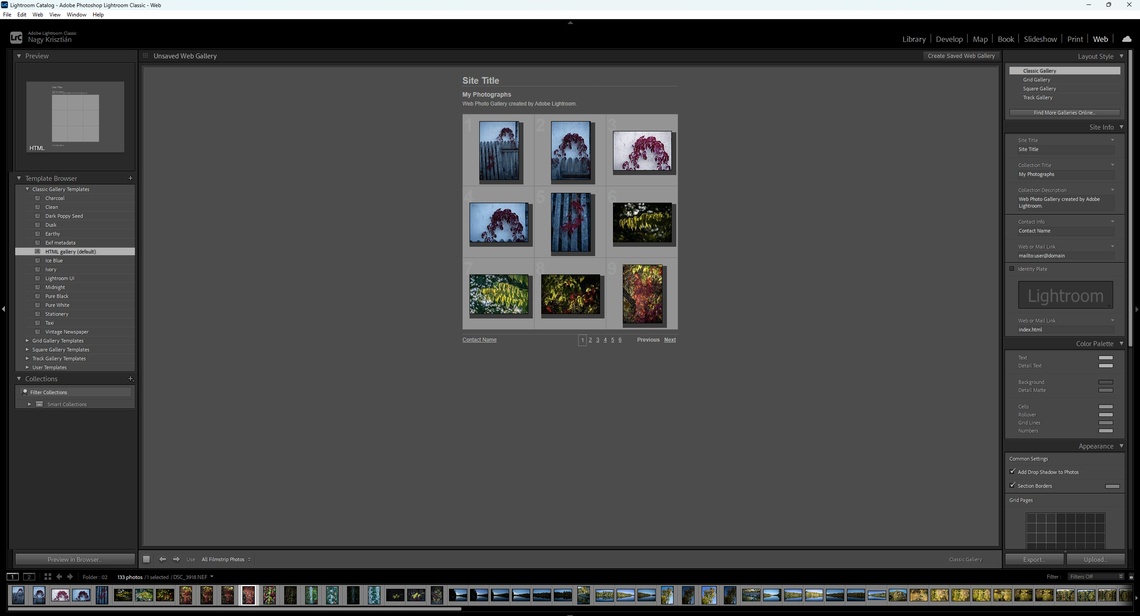
Web module in Adobe Lightroom Classic
The Web module allows you to create simple web-based photo galleries directly from your Lightroom catalog.
You can select photographs, choose a gallery layout, and customize its appearance without manually writing HTML code.
Main features of the Web module
- Create HTML-based photo galleries.
- Choose from available gallery templates.
- Customize gallery titles and descriptions.
- Adjust colors, thumbnail layouts, and other visual settings.
- Include photographer or contact information.
- Preview the gallery in a web browser.
- Export gallery files or upload them to a compatible web server.
The Web module can be useful for creating basic online portfolios or sharing collections of photographs through a self-hosted website.
However, it is important to understand that the Web module is a relatively traditional gallery-building tool. For modern photography websites, platforms such as WordPress or dedicated online portfolio services often provide more flexibility, responsive layouts, and advanced functionality.
When should you use it?
Use the Web module when you need a simple HTML photo gallery that you can export and publish on a web server.
How the Modules Work Together
Although Lightroom Classic separates its features into different modules, they are all connected through the same catalog.
For example, a typical photography workflow might look like this:
- Library: Import photographs from your camera and organize them into folders or collections.
- Library: Review the images and select your favorites using flags or star ratings.
- Develop: Adjust exposure, white balance, colors, and other image settings.
- Map: Add or verify location information when necessary.
- Library: Export your finished photographs for online sharing or delivery.
Depending on your needs, you can also use the Book, Slideshow, Print, or Web modules to present your finished photographs in different formats.
You do not need to use every module. In fact, many photographers spend most of their time switching between Library and Develop.
Final Thoughts
Adobe Lightroom Classic offers a complete environment for managing a photography workflow, from importing original camera files to preparing finished images for different purposes.
At first, the number of available tools may seem overwhelming, but understanding the purpose of each module makes the application much easier to navigate.
For beginners, I recommend focusing on the Library and Develop modules first. Learning how to organize photographs and make basic adjustments provides a solid foundation before exploring more specialized features.
In the next tutorials, we will take a closer look at Lightroom Classic’s individual modules, starting with the Library and Develop workspaces. We will explore their panels, tools, and practical functions step by step, using real examples and screenshots.
The goal is not simply to learn where each button is located, but to understand how Lightroom Classic can make your photographic workflow faster, more organized, and more efficient.