
Installing Adobe Lightroom on Windows or Mac
Installing Adobe Lightroom is a straightforward process. Follow these steps to get started.
Step 1 – Create an Adobe Account
Visit the official Adobe Lightroom website.
Create an Adobe account if you do not already have one. You can then choose a subscription plan or start the 7-day free trial.

Step 2 – Download Adobe Creative Cloud
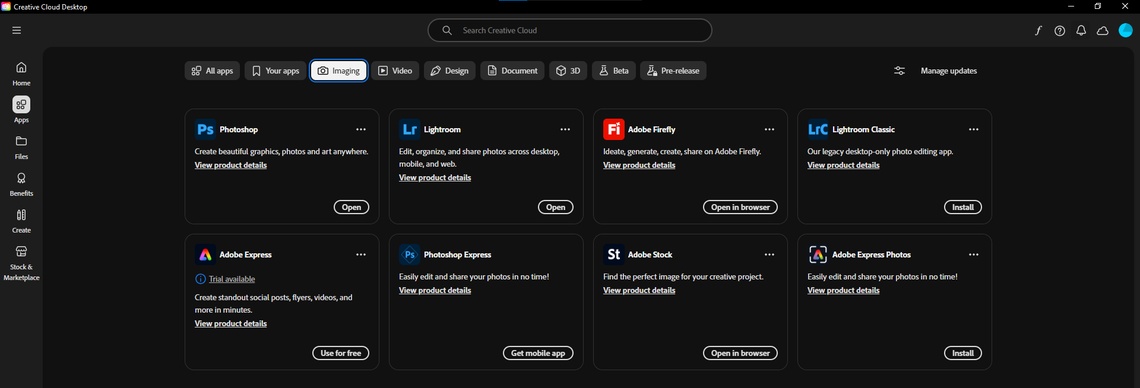
After registering or purchasing a subscription, download and install the Adobe Creative Cloud Desktop application.
Creative Cloud is Adobe’s application management platform. It allows you to view, download, install, and update all the Adobe applications included in your subscription.
You can also discover other Adobe applications and explore available free trials.
Step 3 – Install Lightroom
Open the Creative Cloud Desktop application and sign in using your Adobe account.
Find Adobe Lightroom or Lightroom Classic in the list of available applications.
Click the Install button and wait for the installation to finish.
Step 4 – Activate Lightroom
Once the installation is complete, launch Lightroom.
If prompted, sign in with your Adobe account to activate the software.
An individual Adobe subscription generally allows you to activate applications on up to two computers, although you can only use the applications on one computer at a time.

Installing Adobe Lightroom on Mobile Devices (Android and iOS)
Adobe Lightroom is also available for smartphones and tablets, making it possible to edit photos wherever you are.
Step 1 – Open Your App Store
- iPhone or iPad: Open the Apple App Store.
- Android: Open the Google Play Store.
Step 2 – Find Adobe Lightroom
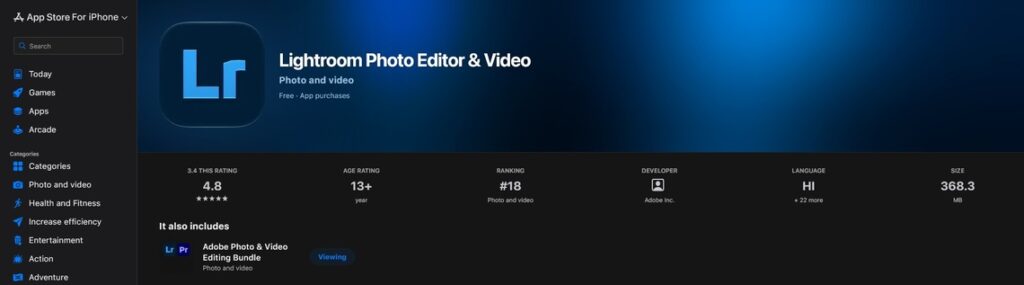
Search for Adobe Lightroom and select the official application published by Adobe.
Tap Download, Get, or Install, depending on your device.
Step 3 – Sign In or Create an Account
After installing the application, open Lightroom and sign in with your Adobe account.
If you do not have an account, you can create one for free.
The mobile version of Lightroom offers several basic editing tools for free, while advanced features require a paid subscription.

Final Thoughts
Adobe Lightroom is an excellent starting point for anyone interested in digital photography and photo editing.
With its intuitive interface and powerful editing tools, you can improve your photos, organize your image library, and develop a consistent editing style.
If you are new to Lightroom, the 7-day free trial is a great opportunity to explore the software before deciding which subscription plan best suits your needs.
My Personal Experience – Recommended Hardware for Adobe Lightroom
After using Adobe Lightroom Classic for photo editing, I have found that having the right hardware can make a significant difference in performance, especially when working with large RAW files or AI-powered editing tools.
Here are some recommendations based on my personal experience.
Storage – Why an SSD Matters
I strongly recommend installing Adobe Lightroom on a fast SSD (Solid State Drive) rather than a traditional hard drive.
If possible, you should also store your RAW photo files, Lightroom catalog, and Camera Raw cache on an SSD.
This can significantly improve photo importing, preview loading, and overall editing responsiveness.
An NVMe M.2 SSD is an excellent choice, particularly when working with large numbers of high-resolution photographs.
RAM – How Much Memory Do You Need?
For basic photo editing, 8 GB of RAM may be sufficient, but I recommend at least 16 GB for a smoother experience.
If you regularly work with large RAW files, use AI-powered features, or run multiple applications simultaneously, 32 GB or more is a better choice.
Having more RAM can help Lightroom handle demanding tasks without slowing down, especially when switching between applications such as Lightroom and Photoshop.
Graphics Card – GPU Performance
A dedicated graphics card can significantly improve Lightroom’s performance, particularly when using GPU-accelerated editing tools and AI features.
For basic tasks, a graphics card with at least 2 GB of VRAM may be sufficient, although 4-8 GB or more is preferable for modern Lightroom workflows.
If you frequently use features such as AI Denoise, AI masking, or other advanced tools, a more powerful GPU with sufficient video memory can noticeably reduce processing times.
Disk Space and Lightroom Catalog
The Lightroom application itself requires several gigabytes of storage space. I recommend keeping at least 8-10 GB of free space available for installation, although additional space will be needed for updates, caches, previews, and temporary files.
The total storage requirement depends heavily on the number and size of the photographs you plan to edit.
Lightroom Classic creates a catalog file that stores information about your images, including editing adjustments, metadata, and file locations.
The catalog does not normally contain the original RAW photographs, but its previews and associated files can consume a considerable amount of additional storage space.
For this reason, I recommend choosing a larger SSD if you regularly work with hundreds or thousands of RAW photographs.
Internet Connection
An internet connection is required to activate Adobe Lightroom, validate your subscription, download updates, and access online services.
Adobe applications also perform periodic license verification. It is advisable to connect your computer to the internet regularly, approximately once every 30 days, although the exact offline usage limits depend on your subscription and licensing conditions.
My Current Computer Setup
Here is the computer configuration I currently use for editing RAW photographs in Adobe Lightroom Classic.
Component | My Hardware |
Processor (CPU) | Intel Core i5-10400F, 6 cores, 2.9 GHz |
Memory (RAM) | 64 GB DDR4 (2 × 32 GB) |
Graphics Card (GPU) | NVIDIA GeForce RTX 3060 Ti |
Storage | Samsung 1 TB M.2 SSD |
Real-World Lightroom Performance
With this configuration, Lightroom Classic runs smoothly during my everyday photo editing workflow.
Importing and editing RAW photographs feels responsive, and I can work with multiple images without noticeable slowdowns in normal use.
One of the most impressive features is AI Denoise, which uses artificial intelligence to reduce noise in photographs while preserving fine details.
On my computer, processing a single RAW photograph with AI Denoise typically takes around 5-7 seconds, depending on the image and processing conditions.
Of course, actual performance may vary depending on RAW file resolution, Lightroom version, graphics drivers, and other system settings.
For my photography workflow, this setup provides a good balance between performance and usability, and I am satisfied with the overall editing experience.
My Final Recommendation
If you are building or upgrading a computer specifically for Adobe Lightroom, I would prioritize a fast SSD, sufficient RAM, and a capable graphics card.
You do not necessarily need the most expensive hardware to enjoy Lightroom, but investing in the right components can make photo editing faster, smoother, and much more enjoyable.
My advice: If your budget allows, aim for at least 16-32 GB of RAM, an NVMe SSD, and a modern GPU with enough VRAM for AI-assisted editing.